

Ask your coding agent in the docs repo
1
Connect diagramkit
In Claude Code, install the plugin:In Codex, add
colinmatthews/diagramkit-plugin as a plugin marketplace, then run codex plugin add diagramkit@diagramkit. The first time it runs, you sign in to your diagramkit account.2
Ask for the diagram where it goes
Open your docs repo and name the page and what the diagram should show:Say what happens in order and who takes part. You don’t need to say what kind of diagram: an order of steps between parties comes back as a sequence diagram, and how parts connect comes back as an architecture diagram.
3
Check the page
The agent saves the image (for example
images/sign-in.png) and adds it to the page. Run mint dev and look at it before you commit.Ask Claude, and let Mintlify publish it
If you don’t have the repo open, connect both diagramkit and Mintlify’s MCP to Claude. Then ask in one message: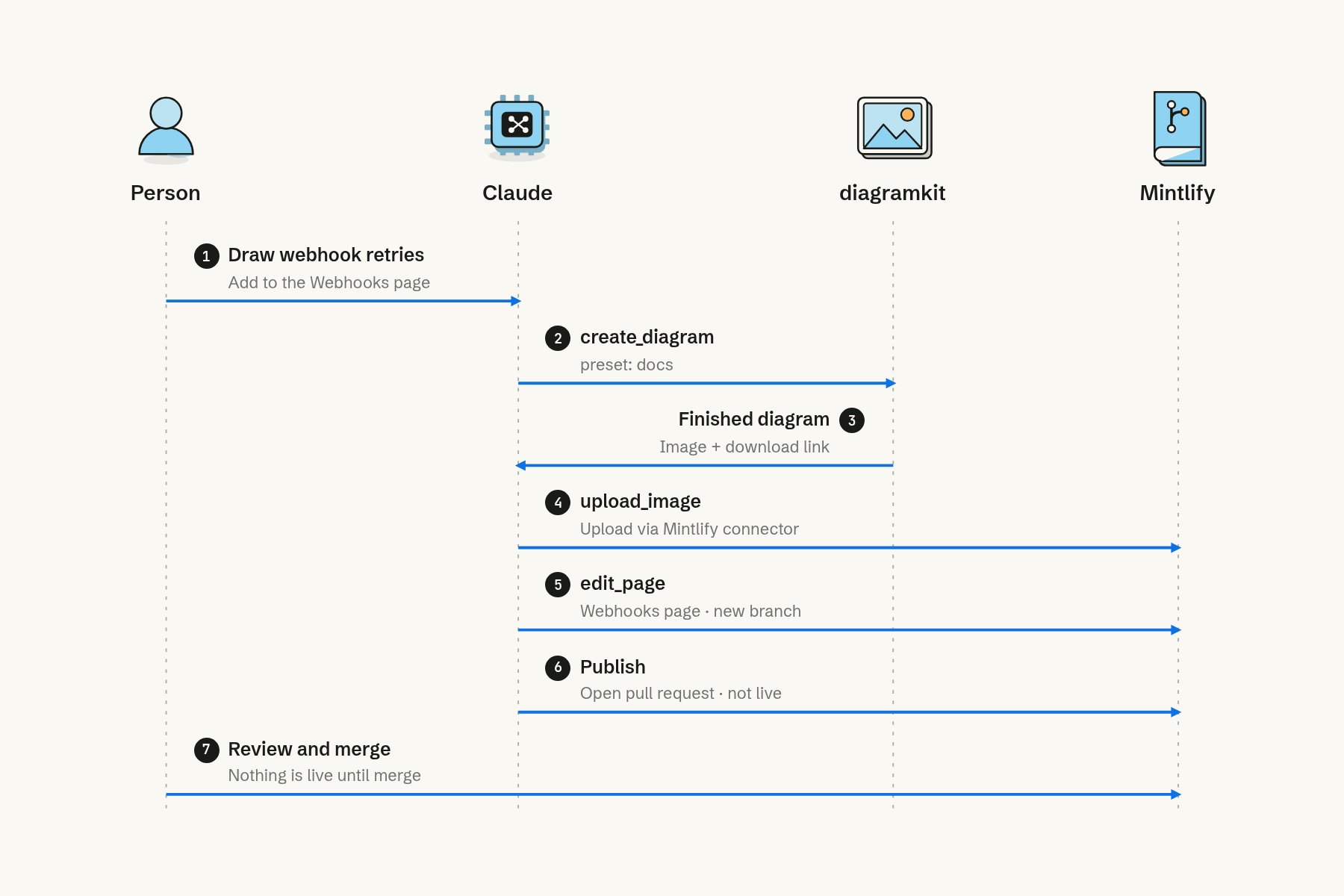
Claude asks diagramkit for the diagram, then uses Mintlify's connector to add it to the page and open a pull request.
Generate diagrams from a script
Use the API when diagrams come from a pipeline, such as one diagram per new guide. Make the diagram with thedocs preset and wait for it:
id from the response:
Put the image on the page
Mintlify serves anything in your repo, so a file atimages/webhooks.png is at /images/webhooks.png. Use a frame to give it a caption:
Match your docs
- Your brand. On Team and Enterprise plans, set up your brand once and every diagram uses your colours, fonts and shapes. See brand setup.
-
Light and dark mode. Ask for a second version on a dark background, then show each in its mode:
- SVG. On paid plans, download SVG instead of PNG. It stays sharp at any size, and every label is real text.
- Changes later. Ask for the change in words (“add a rate limit step after sign-in”), or fix a label yourself without the AI. See Change a diagram.